

Customising templates
This guide will show you how to customise a template to tailor your Paradino documents to your needs. In Paradino, customising templates is simple, flexible and extremely powerful, and instructions are written in plain English.
How templates work
Paradino follows your template closely, so every summary or advice document comes out structured, accurate, and focused on what matters. A template is built from a few simple building blocks, all written in plain English:
- Headings set the topics. Each heading tells Paradino what to write about. It reads your recording or reference material and writes a section under that heading. A heading on its own produces a concise summary of the topic.
- Instructions shape each section (optional). Under a heading, you can guide the output in two ways:
- Show an example: add a few bullet points or a table header, and Paradino matches that format.
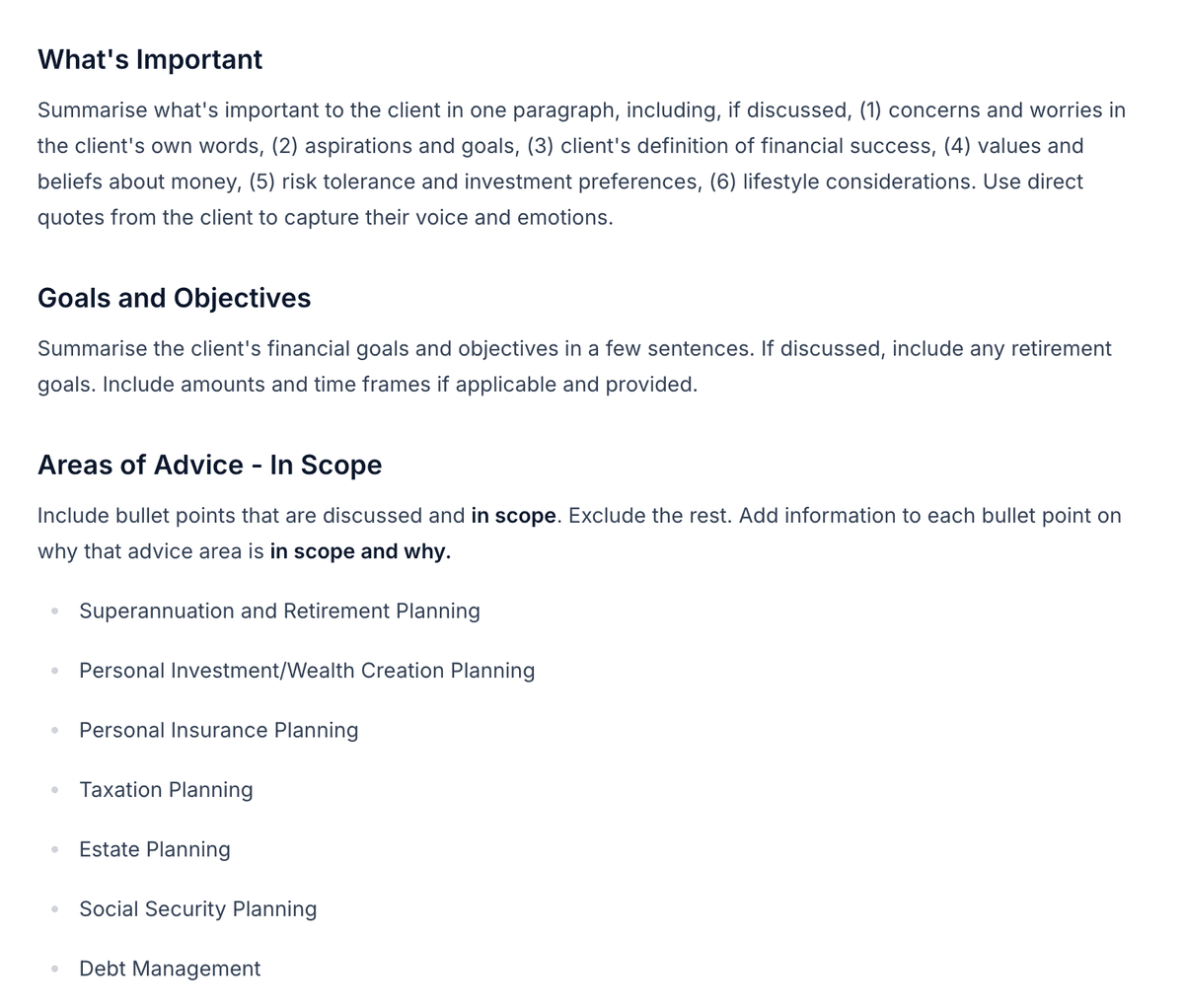
- Give a plain-English instruction: describe the style, focus, or formatting you want.
- Placeholders get filled in. Wrap a field in square brackets, like
[Client name], and Paradino replaces it with details from your input sources. - Choices let Paradino decide. Separate two static text blocks with
ORand it picks the one that fits the context.
Plain-English instructions can control a section's style, formatting, and focus. Here are a few examples:
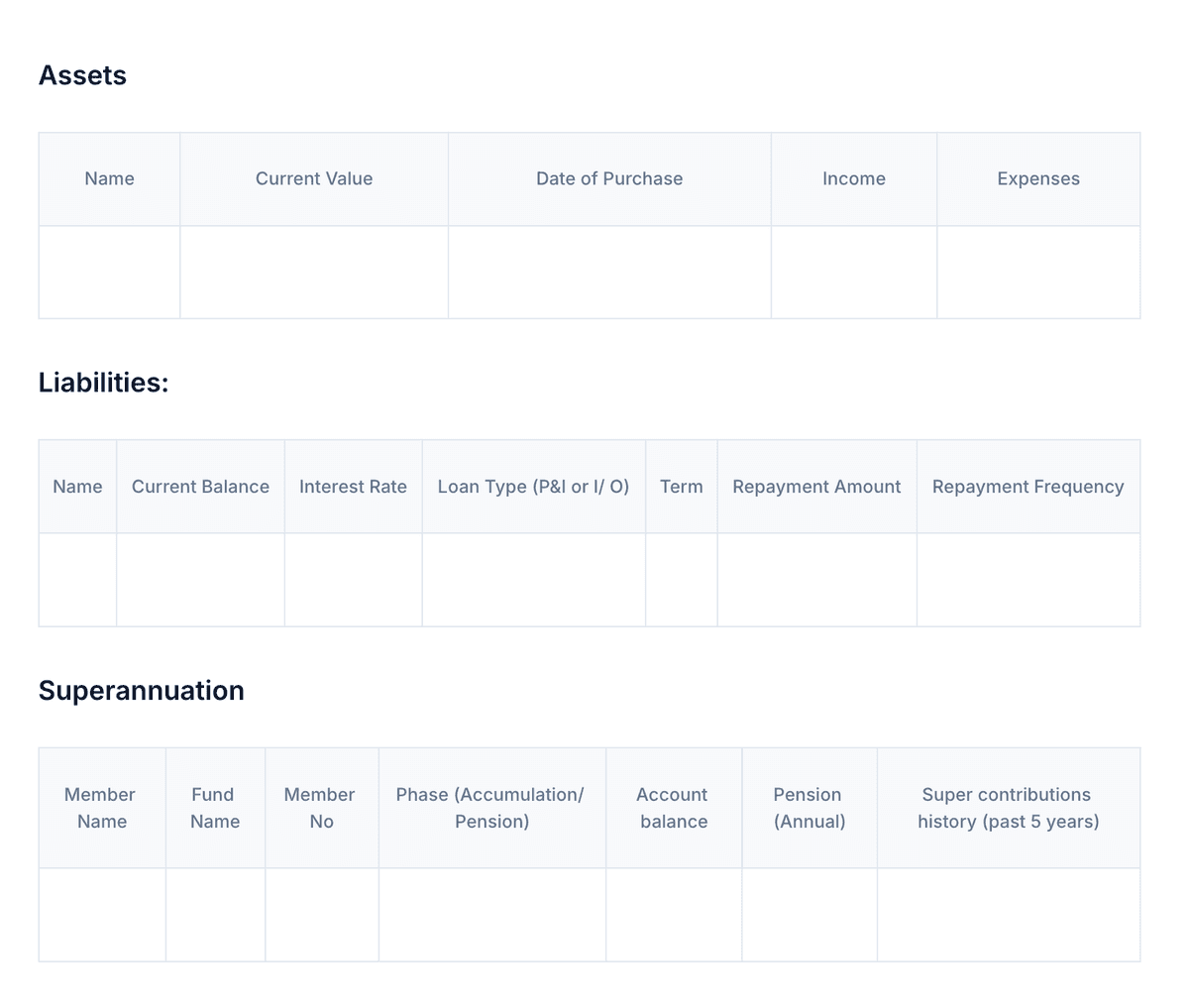
Information from your meeting can also populate tables:
Where to find your templates
Open Templates from the sidebar to see your template library. You can search by name or meeting type, and select any template to open it in the document editor.
Templates are labelled to show where they came from and what you can do with them:
- Default: Paradino provides default templates developed to produce accurate, comprehensive file notes and advice documents.
- Licensee: templates shared with your practice by your licensee. You'll only see these if your practice operates under a licensee that shares templates.
- Custom: templates you've created, either by uploading your own or by saving a copy of another template.
Default and licensee templates are read-only, so you can use them as-is or save your own copy to edit. Templates you own are editable. Open any template to see its labels.
Creating a template
There are two ways to get a template into your library.
Customise a default
To tailor a default (or licensee) template to your own needs, open it in Templates and choose Save As in the document editor. This creates your own editable copy that you can refine, while leaving the original untouched.
Upload your practice or licensee template
You can upload a PDF of your existing practice or licensee template and Paradino will process it into an AI-friendly template for you to refine and finalise in the document editor.
- In Templates, click Upload and choose your PDF.
- Give the template a name and select a meeting type (see below).
- Paradino processes the file. You'll see the status move from Pending to Processing, and then Ready once it's done. If a template can't be processed it will show as Failed. Check the file and try uploading again.
- Open the Ready template to review and refine it in the document editor.
Uploading captures your structure (headings, sections, and tables) as an editable template, not as a fillable form. Form elements such as signature lines are converted to plain text or tables, since templates define the structure Paradino fills in rather than capturing input.
Choosing a meeting type
When you upload a template, you assign it a meeting type so Paradino knows where to offer it. Start typing to search the list, or type your own value to create a custom meeting type. The built-in types include:
- Initial Discovery
- Fact Find
- Review
- SOA Presentation
- Review Fact Find
- Team Meeting
- Board Meeting
- Strategy Paper
- Advice Request
- RoA
- SoA
- Engagement Letter
- Phone Call
- Service Agreement
- Advice Summary
- Fees Invoice
- Implementation Checklist
- Accounting and Tax
To use a custom template in Strategy Assist, select Advice Request, Strategy Paper, RoA or SoA as the meeting type when uploading, or open one of our defaults and Save As.
Editing a template
Selecting a template you own opens it in the document editor. You can edit the text, rename headings, and adjust your instructions, and your changes are saved automatically. You can also delete templates you own from your template library when you no longer need them.
Ask Athena to edit a section
You don't have to make every change by hand. In a template you own, highlight some text or select a section and click Ask Athena, then describe the change in plain English: "Tell me what to change". Athena edits just that section and shows you the result before anything is applied:
- Review the edit. The result card shows the updated section, along with a short "Why this edit" rationale.
- Preview with client data. See the section filled in as it would appear in a real document: pick one of your clients and Athena resolves the placeholders, tables, and instructions using their information.
- Accept, refine, or reject. Accept the edit to apply it, send a follow-up revision if it's not quite right, or reject it to leave the template untouched.
Athena edits one section at a time, so for bigger changes work through the template section by section.
Using a template
Your templates (custom and default) appear in the template picker whenever you generate a meeting summary or advice document. Pick the template you want and Paradino will generate the document against its structure. The meeting type you assigned determines where a template is offered, so a template tagged as a Strategy Paper or SoA, for example, will be available in Strategy Assist.